Showing posts with label Hacking Tips. Show all posts

Sunday, 29 June 2014

Different Types Of Hacking

Post By: Hanan Mannan
Contact Number: Pak (+92)-321-59-95-634
-------------------------------------------------------
            Different Types Of Hacking 

* DNN: - Dot Net Nuke method also called Portal Hacking.

* SQL INJECTION - The most common and dangerous kind of attack.It is a code injection technique that exploits a security vulnerability in some computer software.An injection occurs at the database level of an application (like queries).

*
JAVASCRIPT INJECTION - Javascript Injection is a facility by which we can insert our own javascript codes into the websites,either by entering the code into the address bar, or by finding an XSS(Cross site Scripting) vulnerability in a website.It is generally used in spoofing too.

*
SPOOFING ATTACK - A spoofing attack is a situation in which one person or program successfully masquerades as another by falsifying data and thereby gaining an illegitimate advantage.

*
PHISHING - Phishing is a way of attempting to acquire information such as usernames, passwords and credit card details by masquerading as a trustworthy entity in an electronic communication.

*
CROSS SITE SCRIPTING - Cross-site Scripting (XSS) is an attack technique that involves echoing attacker-supplied code into a user's browser instance.

*
MAN IN THE MIDDLE ATTACK - It is a form of active eavesdropping in which the attacker makes independent connections with the victims and relays messages between them, making them believe that they are talking directly to each other over a private connection, when in fact the entire conversation is controlled by the attacker.

*
DNS POISONING - It is a security or data integrity compromise in the Domain Name System (DNS). The compromise occurs when data is introduced into a DNS name server's cache database that did not originate from authoritative DNS sources.

* DOS ATTACK - It is an attempt to make a computer resource unavailable to its intended users.

Posted By MIrza Abdul Hannan8:45:00 pm

Friday, 16 May 2014

Safety and Security Risks When Using Facebook

Post By: Hanan Mannan
Contact Number: Pak (+92)-321-59-95-634
-------------------------------------------------------

Safety and Security Risks When Using Facebook

There is no doubt that the biggest social networking site taking over the whole globe is Facebook. Since it’s the biggest thing the online world has ever seen for the last several years, it’s critical that you understand the guidelines and policies listed on the site. They’re very useful in keeping you informed with various aspects of the site and how it runs.

You should know by now that for every website that you go to, there’s always a good chance of encountering good and bad users. Facebook can be accessed by just about anybody so it’s imperative that you are wise and conscious with how you distribute or share information about yourself on it (and other social networking sites for that matter).

Facebook Security Risks

Identity theft is one of the biggest concerns in the online world today. They are real and can devastate a person’s life if the person isn’t aware of what’s going on.

The internet is fun to be on nowadays since it helps you to keep in touch with your old and new friends, family and associates. You can share content such as pictures with anyone who has an internet connection, play games seamlessly through a virtual portal, being aware of announcements and updates of certain events and entertaining friend requests. Such things have prompted users to come back for more and what many aren’t aware of is the fact that they are vulnerable to online predators and criminals.

So what should you do to help protect yourself from the bad guys out there? Here are just some helpful things that can help you in the long run if you follow them religiously:

1. Understand how the security feature works on Facebook.
As you are well aware, Facebook is known for periodically modifying its security settings. You will observe posts from the site of the changes being made with regards to its security features that lets other users see content that you don’t want them to view. It’s critical that you look into this carefully and see if the changes can significantly affect you in some way.

2. Don’t reveal too much information on Facebook.
One of the most obvious ways of getting in trouble within the biggest social networking site is by revealing too much information on just about everything (including yourself). You should be aware of the things that you’re sharing, be it your profile, wall posts, messages and even the content that you share such as pictures and videos. You’ll never know, criminals would use whatever it is you post for their own evil means.

3. Pay attention to links, e-mails or friends
Social networking sites these can be penetrated by online criminals who use sites like Facebook to gain information about you. This can occur through a sent or posted link, which will in turn eject a virus or spyware to retrieve personal information about you. If you happen to receive a link that you find suspicious, ask your friends about it or simply delete it.

With the evolution of technology, cyber criminals are more smarter than ever. If you are constantly paying attention for any suspicious activity that comes your way, you can shield yourself from identity theft and other online criminal acts.

Posted By MIrza Abdul Hannan12:43:00 am

Make Facebook Photos & Posts Private


Post By: Hanan Mannan
Contact Number: Pak (+92)-321-59-95-634
-------------------------------------------------------

Make Facebook Photos & Posts Private

Do you have private pictures of yourself or your family on Facebook which you don't want the entire world to see? This guide will help you change your Facebook privacy settings to only allow your friends or people you know to see your Facebook photos (and everything else you do). You can even customize the privacy settings of individual albums to share them with a small group of people like your co-workers or relatives.

Make Facebook Photos & Posts Private
There are three ways in which you can do this. Either, you can customize each wall post's or photo's settings individually, or set the preferences for specific albums or use a general setting for all posts and photos you have.

1: Choosing an individual wall post's or photo's privacy settings

While posting your photo or post, click on the down arrow left to the post button. Select Custom from the drop-down menu. Using the pop-up, select who you wish to make a post visible to. You can select if you wish to show a post to friends, friends of friends or specific people or a specific list of people.

Make Facebook Photos Private
Select Custom Privacy Options
You can even hide a photo from specific people or a list of people. This will be especially useful in situations where you don't want your colleagues to see a certain picture that makes fun of them or something similar. Normally, when someone is tagged in a photo, every friend of that Facebook user gets to know about it. So, if you chose to make a photo visible to friends and someone is tagged in that picture, all their friends will see that image. To prevent this, uncheck the Friends of those tagged checkmark.

Facebook Pictures & Posts Private

2: Limiting the Audience for an entire album

This is much similar to setting the audience for an individual picture. Just go to your albums, click on the Settings icon on the bottom right of the album whose privacy settings you wish to customize. Then select Custom from the drop down menu. The options Facebook offers are almost the same as those for an individual photo, however there is one difference.

Private Pictures Facebook Posts

All those people who are tagged and their friends would still be able to see the photos in your album. To prevent this, you will have to change the privacy settings of each individual photo.

Facebook photos & posts privacy settings

3: Making all your Photos and Posts Private

This is the permanent solution against worrying about your Facebook content. However, it doesn't offer much customization options and should only be used if you are sure how you will use Facebook. This is a 2 step process and involves customizing the audience for your past posts as well as those you will make in future.

Step 1: Limiting Past Posts & Photos
Go to your Privacy Settings, and then go to "Limit the audience for posts you've shared with friends of friends or Public?." Then click on the "Limit Old Posts" button. In the pop-up, click Confirm. This is a permanent change and cannot be undone. However, all those tagged and their friends would still be able to see your posts. To prevent this, you will have to change each post's settings individually.

Step 2: Limiting Future Posts and Photos

Facebook Content & Photos Private

While in the privacy center, click on "Who can see your future posts?" This will open a non-functional status update box. However, the privacy options that open when clicking on the down arrow right next to the post button are functional and act as global defaults for the content you post on Facebook in the future. Make sure to select friends if you only wish to share content with your friends. You can however, change this according to your needs; but for most people, friends would be the best option. You can further improve your privacy by selecting Custom and then unchecking the check box that appears next to "Friends of those tagged". This will customize your Facebook settings to show your Facebook activity only to your friends and those tagged.

You can also select who gets tagged in your content to further prevent your content from appearing in front of unwanted eyes. To do this, go to your Privacy Settings from the Settings icon located at the top right of the blue Facebook bar. Then, in Privacy Settings, click on Timeline and Tagging. Then under, "How can I manage tags people add and tagging suggestions?", select Enabled to review tags that friends add to your posts.

Facebook's privacy settings take some time to adjust but once you are done, you will never have to worry about your content ending up in front of unwanted users.

Posted By MIrza Abdul Hannan12:38:00 am

Thursday, 15 May 2014

Command Prompt Tricks, Hacks & Codes

Post By: Hanan Mannan
Contact Number: Pak (+92)-321-59-95-634
-------------------------------------------------------

Command Prompt Tricks, Hacks & Codes

Command Prompt is one of the most powerful tools in Windows; but sadly, it is also the most ignored one. Things were not always like this; but with the advent of GUI based operating systems, people started feeling that computing through command based tools was boring. This ultimately lead the command prompt into obscurity.

However, the command prompt is not useless. In fact, it can be pretty useful. This article provides some excellent tricks, secrets and hacks that will make you realize that the Windows Command Prompt is not only useful but also a tool that you should definitely give more respect to.

Ascii star wars command prompt
1-Watch ASCII version of the Star Wars Episode IV movie
Surprised yet? You can watch an ASCII version of the full Star Wars Episode IV Movie right in your command prompt window. Just open command prompt, type a small code and the movie will start playing immediately. Read the complete instructions here.

2- Create Matrix falling code effect
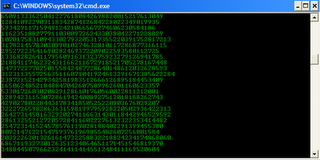
Have you watched “The Matrix”? Of course, you have. Then, you already know what I am talking about. In case you still don't know what I mean, take a look at this image! You can create the same effect in command prompt using just a few lines of code. Head over to this post for instructions.

command prompt tricks

3- Make Folders that you cannot delete
Are you tired of accidentally deleting important folders? Well, if you are, you can learn how to makeundeletable folders here.

4- Shutdown your computer giving a funny reason
What if your computer shuts down saying that it is tired and doesn't want to work anymore? It would be fun, wouldn't it? You can do so by reading the instructions here.

5- Know your IP address, DNS Server's address and a lot more about your Internet Connection
Command Prompt can even let you know your IP address. Just type ipconfig/ all in the command prompt and press Enter. Along with your IP address and DNS servers, command prompt will also return a ton of information like your host name, primary DNS suffix, node type, whether IP Routing ,Wins Proxy, and DHCP are enabled, your network adapter's description, your physical (MAC) address etc .

6- Know if your neighbours are stealing your Wifi connection
command prompt codes
Command Prompt can let you know if someone is connected to your Local Area Connection and using it. Just follow the steps:-
1) Open your browser and visit http://192.168.1.1 or http://192.168.0.1 depending on your router.
2) Find the tab that mentions “Attached Devices” or something similar.
3) Find the computer name, IP address and MAC Address (sometimes called Physical Address or Hardware Address) of your computer using the previous trick.
4 )Compare it with those displayed by your router in Step 2. If you notice some strange devices, then your neighbour has been sneaking in on your internet connection and it is best to ensure that yourwireless network is as secure as it can be.

7- Know if someone is hacking your computer/ Trace a Hacker
Command Prompt hacks
Want to know if someone is hacking your computer? Command Prompt can help you find if someone you don't know is connected to your computer stealing private data. Just execute netstat -a and the command prompt will return a list of computers that your computer is connected to. In the results returned, Proto column gives the type of data transmission taking place (TCP or UDP) , Local address column gives the port with which your computer is connected to an external computer and the Foreign Address column gives the external computer you are connected to along with the port being used for the connection. State gives the state of the connection (whether a connection is actually established, or waiting for transmission or is “Timed Out”).

These tricks work on Windows 8, Windows 7, Windows Vista, Windows XP and all previous versions of Windows.

Now you know just how useful command prompt can be. Find more awesome tips and tricks in the Tricks section.

Posted By MIrza Abdul Hannan12:15:00 pm