Showing posts with label USB Flash drive Tricks. Show all posts

Sunday, 8 June 2014

How to remove usb shortcut error – usb error solution

Post By: Hanan Mannan
Contact Number: Pak (+92)-321-59-95-634
-------------------------------------------------------

Read how to remove usb shortcut error .Get your data safely from usb drive
Hey friends i have a good trick for you. “How to remove usb shortcut error“. Do to this error you can open your usb drive data (documents,movies, songs etc). But you cannot access this data  (you cannot copy past the shortcut affected files from usb flesh to pc or any other place) for copy.
some people first make folder in the usb, than save your data in this folder to save from shortcut error because in this case folder is affected by the shortcut error but your data is save.  But if your data is affected with shortcut error than you cannot copy it. when you copy or drag your file (data) you only get this shortcut.

How to remove usb shortcut error   usb error solution
Therefore i decided to post a trick for you. “How to remove usb shortcut error”. You can remove this error by following simple steps.
1. Press  window + R to get run window.
How to remove usb shortcut error   usb error solution
2. Type cmd to get commad prompt.
How to remove usb shortcut error   usb error solution
3. In cmd write usb drive address  eg   E: , G: , F:  etc . After giving pen drive address press enter commad is movinig to usb drive .
How to remove usb shortcut error   usb error solution
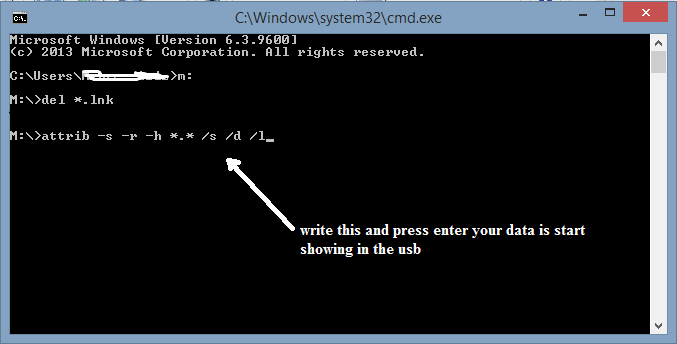
4.Now type  del *.link and press enter
How to remove usb shortcut error   usb error solution
5.  If usb drive is  not have shortcut error than cmd show as.
How to remove usb shortcut error   usb error solution
6.If shortcut error is found in your drive than it show as..
How to remove usb shortcut error   usb error solution
7.Now  type  attrib –s –r –h *.* /s  /d  /l  . Please place all spaces between the codes.
How to remove usb shortcut error   usb error solution
Now you can see your  files which are affected by shortcut error  in the usb drive .
Warning : This tricks only remove shortcut error from the usb drive (pen drive, flesh). It cannot remove from computer drives.

Posted By MIrza Abdul Hannan11:14:00 pm

Friday, 16 May 2014

Install Windows 8, 8.1 or 7 from a USB Flash drive

Post By: Hanan Mannan
Contact Number: Pak (+92)-321-59-95-634
-------------------------------------------------------
Install Windows 8, 8.1 or 7 from a USB Flash drive
Windows is sold in the form of DVDs and downloadable ISOs. The Windows DVD can be put into an optical drive for easy installation. However, with the advent of ultra portable devices and tablets that do not have optical drives, installing Windows from the setup DVD becomes a problem. The only solution for these devices is to install Windows from a USB device such as a flash drive.

There are many other reasons why despite having an optical drive, you might want a bootable USB device for installing Windows. One is that installing Windows from a flash drive is a lot faster than that from a DVD. Creating a flash drive for installing Windows is not as simple as copying the setup files to it as it will not be bootable. To make it bootable, you need to use special software.

There are many third party software to create bootable USB devices but given the fact that most people aren't comfortable with third party software, Microsoft has released an application called Windows 7 USB/DVD download tool. Although the program's name makes it feel that it only supports Windows 7, that isn't really the case. It works well for preparing a bootable USB device for installing Windows 8 andWindows 8.1.

Install Windows from USB Flash drive

Before you begin, you must make sure that your flash drive has a storage capacity of at least 4GB. Also, you need to make sure that you have an ISO file of the Windows setup DVD with you. If you do not have the ISO file, then you need to create an ISO file from your setup DVD using a free program likeISOCreator.

Steps to Install Windows from USB flash drive


1. Install Windows 7 USB/DVD download tool. To install this program, you need .NET Framework version 2.0 or higher. The program runs perfectly on Windows 8, Windows 8.1, Windows 7, Windows Vista and Windows XP. Also, you need to be in an administrator account.

2. Open the program. Enter the location of your Windows ISO file in the source file box. Alternatively, you can browse to it and click Next.

3. On the choose media type screen, select USB device to create a bootable Windows installation flash drive.

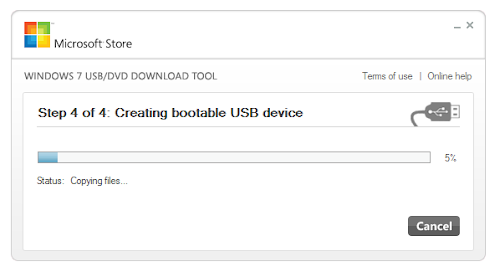
4. On the insert USB device screen, select your USB flash drive or the external hard drive to which you want to copy the setup files and click Begin copying. If your USB device does not have enough space, you will be shown a dialog box saying so. Click Erase USB device. This will format your USB device and delete all data on it.

Tip: If you accidentally delete the data in your USB device in the previous step, you could still recover it with free tools.

5. If everything goes right, you will see a Bootable USB device created successfully message on the next screen.

6. Now, you need to boot from the USB device you just created to start the Windows installation process. If your computer doesn't boot from it, you might need to change the boot order. Also, you must note that older computers won't boot from a USB drive that is formatted as NTFS which is what theWindows 7 USB/DVD download tool formats it into while you select Erase USB device option. To overcome this, you should make sure that your device is formatted as FAT32 and has enough disk space.


If it complains that it is not a valid ISO file, you need to make sure that your Windows ISO is original and has not been modified in any way. If you are still unable to install Windows from a USB drive, just add a comment.

Posted By MIrza Abdul Hannan12:36:00 am